RAMP Registration Guide
First time using RAMP or has it been a while since you’ve used it?
RAMP Interactive is Ringette BC’s chosen sports administration software. You must create an account in RAMP which will then be used to manage the registrations for different family members and registration types for Delta Ringette Association programs.
The following information will guide you through the account setup and registration process in RAMP. If you have any questions, please email registrar@deltaringette.ca.
Account Creation
If you have never created an account in RAMP, follow these steps to set one up:
1. Access the Delta Ringette Association’s (DRA) registration page here: http://deltaringette.rampregistrations.com
2. Click on the Don’t have an account? Create one Here link.
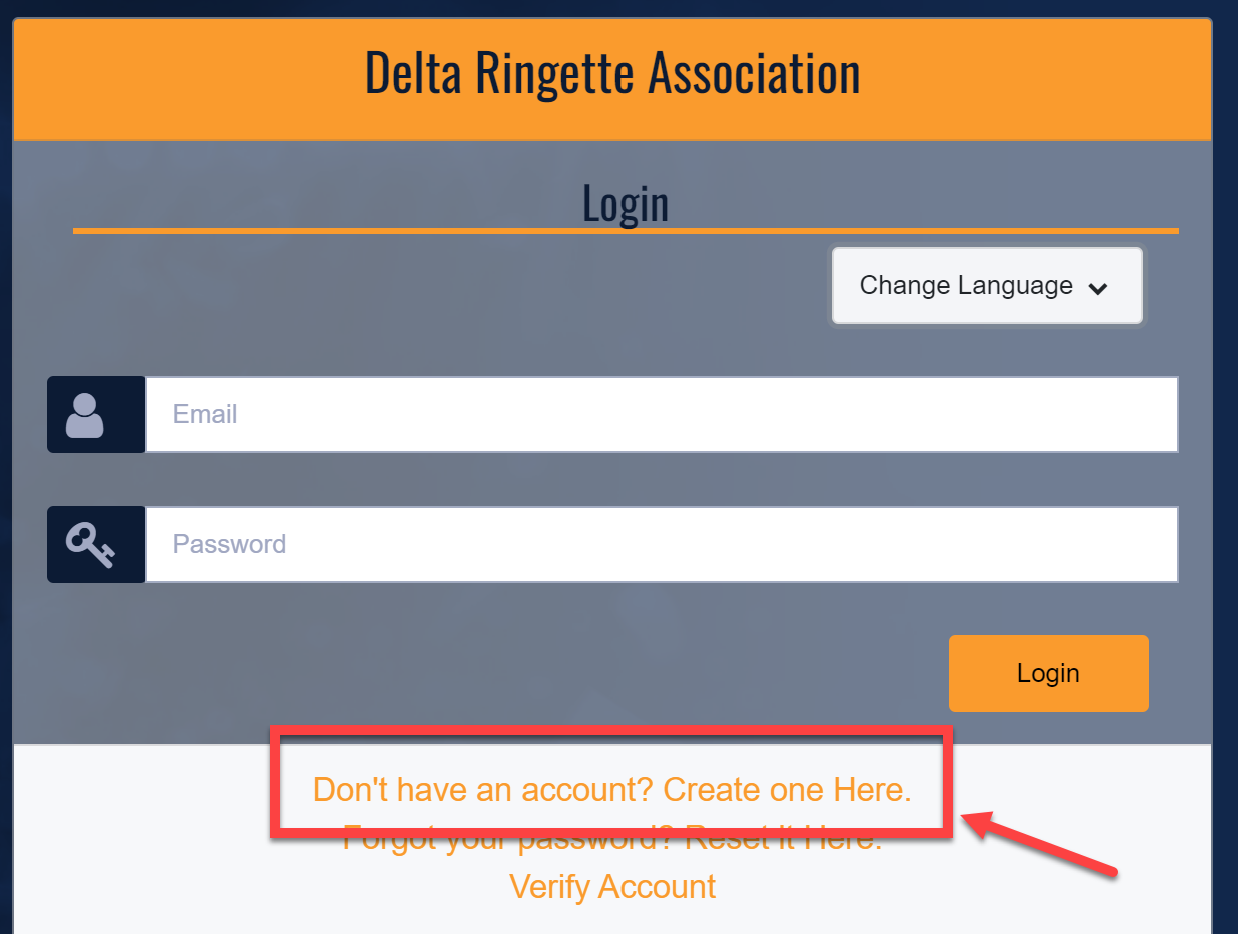
3. Enter an email address, password, and language preference for the account. If the email address has previously been used for a RAMP registration, you will see an error. One single RAMP account can be used for multiple associations, such as Springette or if you came from another Association. If that’s the case, click on Forgot your password? Reset It Here. to recover your password and account.
4. Once the account is created, you will be brought back to the login screen. Login with your new account.
5. Once logged in, you will see a dashboard with available registration types. If registration is not open yet, you can still setup your account to prepare for an upcoming registration.
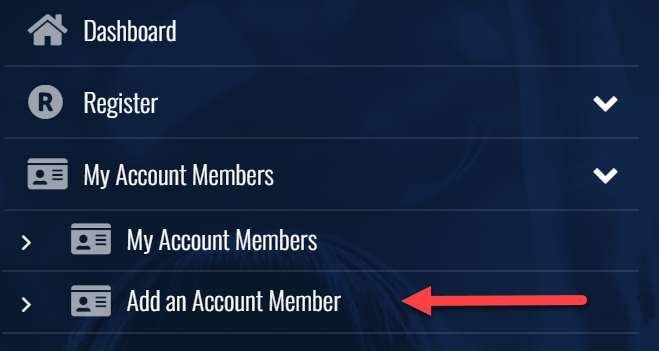
6. On the left pane select My Account Members and then click Add a Family Member and follow the instructions to create a new family member for every individual in your family that will be registering with DRA for any role or program. This includes participants, bench staff members, executive committee members, and volunteers.
Participant Registration
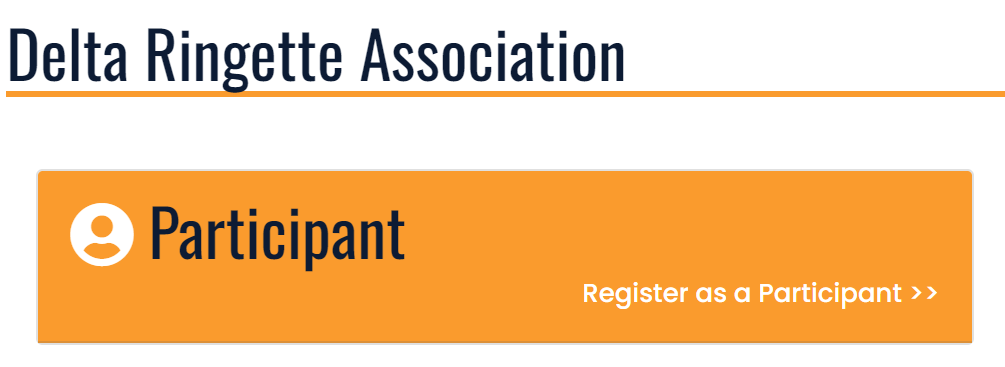
1. When registration opens, you will see a Participant Registration option on the dashboard and under the registration section of your RAMP portal, choose that option to continue.
2. In the drop-down menus, select the appropriate season or event option.
- For season registration, choose the current Delta Ringette Association yearly season (e.g. 2024-2025).
- For any other event registration facilitated by DRA, choose the season that is specified in the event information you received.
3. Choose the account member that you are registering for. If the name of the participant does not show up or if you have not yet completed the account member registration steps, see Account Creation in RAMP for more information.
4. Under Participant Information, verify all details for the registrant are accurate.
5. Under Choose a Division, select the appropriate age division for the participant. For more information, see Registration Information for more details.
6. Under Choose Your Packages,
- For a season registration, select the package that applies to this participant based on their level of play (e.g. U12, U14, etc.).
- For any other event registration facilitated by DRA, choose the package type that is specified in the event information you received.
7. Click Continue and on the Waivers/Consent/Acknowledgment page, read each section carefully and sign where applicable. You will be asked to confirm your eligibility to consent at the bottom of the page, and then click Continue.
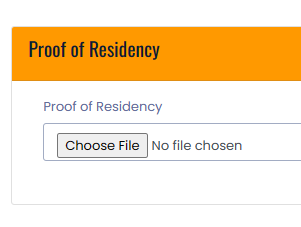
8. On the Upload page, please provide proof of age and proof of residency by uploading an image of the appropriate documents.
9. On the Parent/Guardian page, provide the contact information for up to two parents / guardians / emergency contacts. Completing this step with accuracy will ensure that one or two parents / guardians are associated with the player for RAMP information and any communications.
- From the drop-down menu, select the parent / guardian / emergency contact family member. If you have not yet added them as an account member, see Account Creation in RAMP for more information.
- Check the information for accuracy.
- If you are adding a second parent / guardian / emergency contact, check mark the ‘I want to add a 2nd Guardian/Parent/Emerg. Contact for this registration’ box to open up a second section for the additional family member.
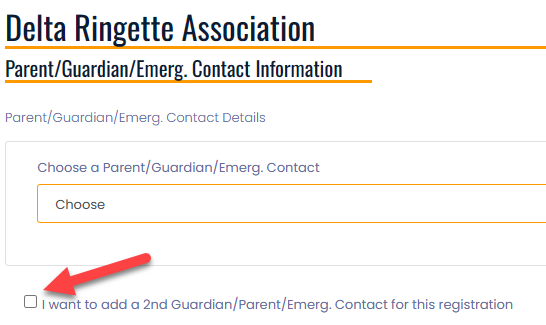
When complete, click Continue.
10. On the Questions page, complete each question.
11. On the Confirm Details and Submit Registration page,
- Check each participant and contact section for accuracy.
- Confirm that the division and package are correct.
- Under the Payment Information section
- Enter any applicable promo codes. For more information, see Registration Information.
- Select the method of payment and take note of the instructions provided.

12. Click Submit to complete your registration. You will receive a confirmation email to let you know that it has been received, and you will receive further information once the teams have been formed.
